
You export a year of sales from the till system, or every order from your shop, double-click the CSV, and Excel opens it. It looks fine. Then a bar across the top says: "This data set is too large for the Excel grid. If you save this workbook, you'll lose data that wasn't loaded."
An Excel sheet holds 1,048,576 rows and 16,384 columns. If a file has more rows than that, Excel shows the first 1,048,576 and leaves the rest out. Google Sheets won't take it either: it caps a spreadsheet at 20 million cells, so a two-million-row export with eleven columns is already over.
First: don't save over the file
If you press Save now and keep the CSV format, the file on your disk is replaced by the rows Excel loaded, and the rest are gone. If you've already started working in it, use File > Save a Copy with a name that says it's partial, like orders-PARTIAL.xlsx, and keep the original export somewhere safe.
The other trap is quieter. Once the bar is closed, nothing on screen says the data is cut. A SUM down a column, a pivot table, a filter for one customer: all of it covers only the rows that loaded. If a number looks low, this is often why.
1. Ask for a smaller export
The cleanest fix is often where the file came from. Most systems let you pick a date range, a store or the columns you want before they export. Twelve monthly exports open fine where one yearly export doesn't. It's worth a look before anything else, especially if you'll need this again next month.
2. Load it into Excel's data model instead of the sheet (Windows)
Excel on Windows can read the whole file without putting it on a sheet. Open a blank workbook, go to Data > From Text/CSV, pick the file, then open the arrow next to Load, choose Load To and pick PivotTable Report. The rows stay inside the workbook and the pivot table works over all of them, even though you never see them as rows. Microsoft's support page for the too-large message describes the same steps.
That's the right answer when what you want is totals: sales per month, orders per store. It helps less when someone needs the rows themselves, to scroll through, filter by hand or send on. And Microsoft's instructions are for Excel on Windows.
3. Cut it into files Excel can open
If you need the rows, the file has to get smaller: fewer columns, fewer rows, or several files. That usually means a script or a database, which is a lot to set up for one export. We built excelSplit for this. It opens the file in your browser and reads it from your disk as it goes, so the file doesn't have to fit in memory and it's never uploaded.
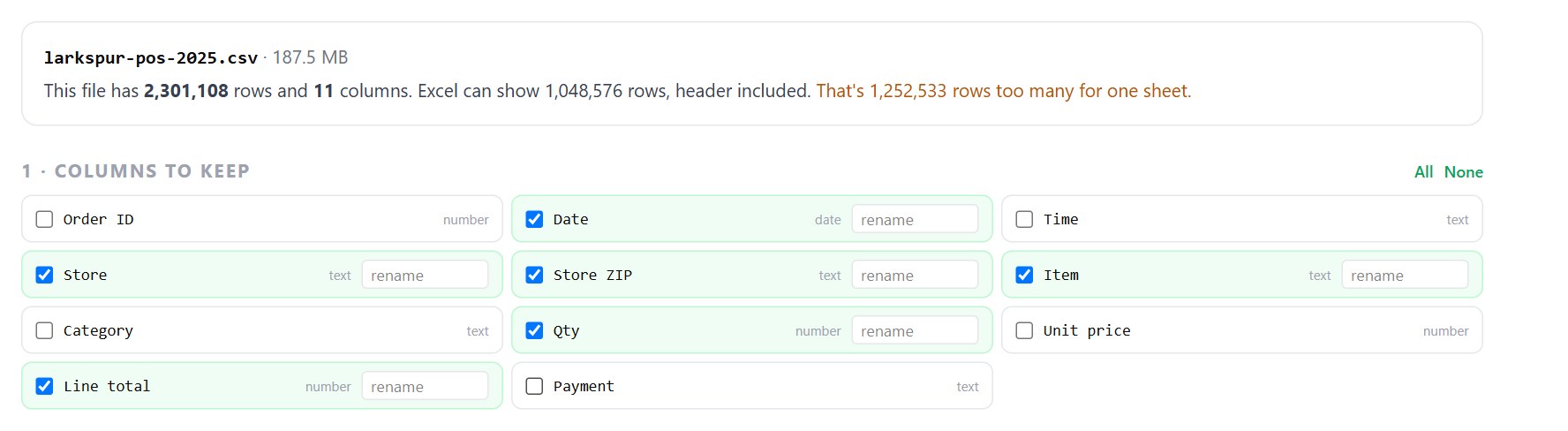
Here's a made-up café chain's till export for 2025: four stores, every item sold, 2.3 million rows. Open it and the page tells you how far over the limit it is. Untick the columns nobody needs:
Then keep only the rows you want. Filters work on text, numbers and dates, and the count changes as you type. One store's whole year is 718,679 rows, which fits a sheet on its own:

If it still doesn't fit, pick how to split it: files of up to a million rows each, one file per value of a column (a store, an account, a month or a year), or a summary instead of the rows, such as a count and a total per store. The whole year by month gives twelve files of about 200,000 rows each:

Each file is a real .xlsx with the header row frozen. Dates are Excel dates, so sorting and grouping by month work, and amounts are numbers. A column like a ZIP code or an account number that starts with 0 stays text, so 02110 is still 02110 in the file. Double-click the CSV in Excel with its default settings and it becomes 2110. You can save as CSV instead if the files are going into another system.
If you know a bit of SQL
The same file opens in bigCsv, which treats the whole file as a table called data and runs any query on it with DuckDB. Sales per store per month over 2.3 million rows takes a few seconds:
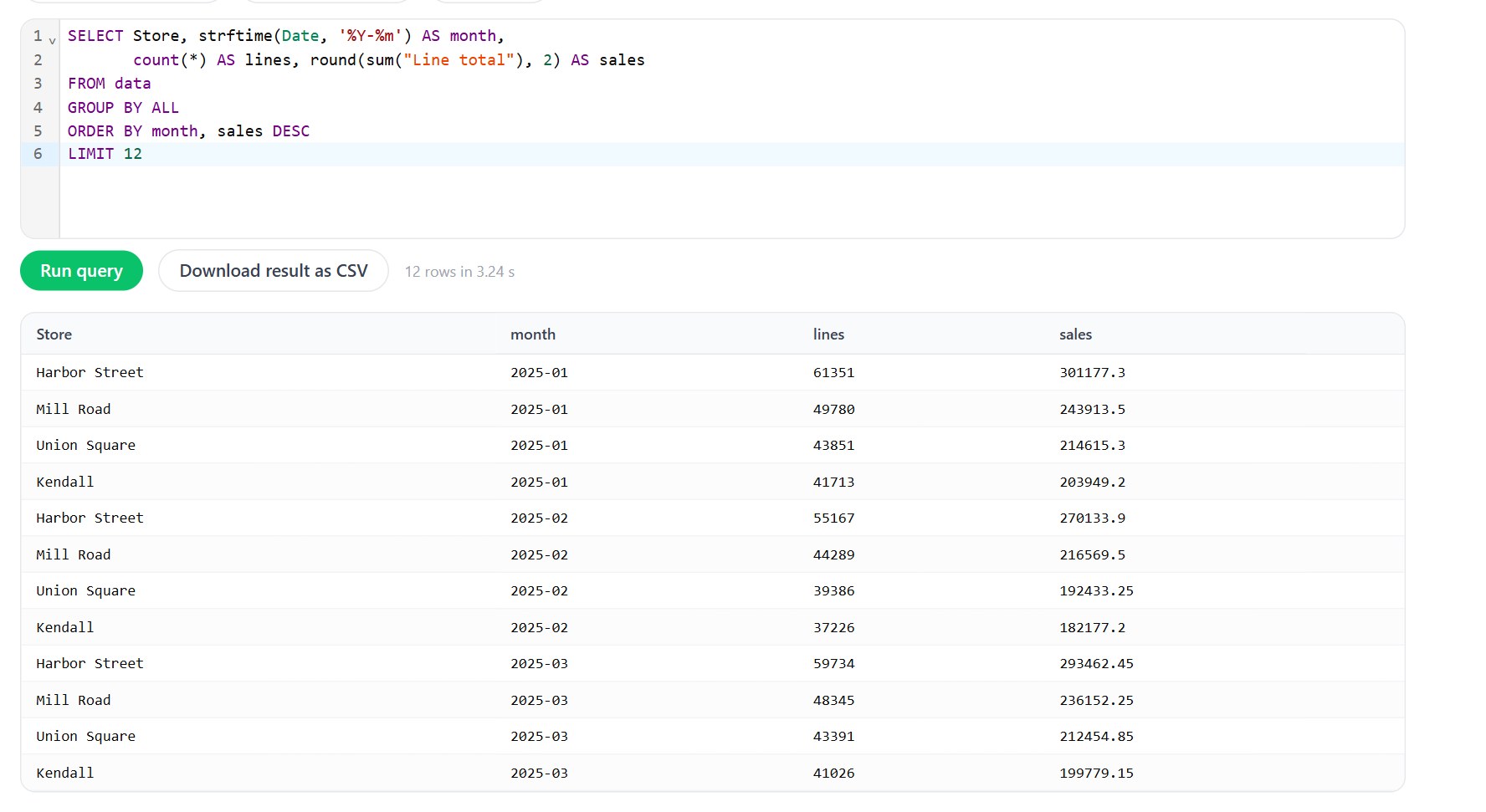
Download the result as a CSV and it's a few dozen rows instead of two million. Nothing is uploaded here either.
Three things to check afterwards
The rows add up. The row counts of the parts should add up to the total the tool showed, or to the count after your filters. If you split by rows, the parts follow the order of the original file, so part 2 starts where part 1 ended.
Long text. An Excel cell holds at most 32,767 characters. Anything longer gets cut, and excelSplit tells you how many cells that happened to. It's rare in sales exports and common in exports with notes or email bodies in them.
Who opens them. If the files are for someone else, one file per month or per store is usually easier for them than part 1, part 2 and part 3.
Open a file that's too big for Excel, keep what you need and download Excel files. It runs in your browser, and the file never leaves your computer.
Open excelSplitSources: Microsoft Support, Excel specifications and limits (1,048,576 rows by 16,384 columns; 32,767 characters in a cell); Microsoft Support, What to do if a data set is too large for the Excel grid (the message, Save a Copy, From Text/CSV to a PivotTable Report); Google Drive Help, Files you can store in Google Drive (Google Sheets: up to 20 million cells).


Comments (0)
Loading comments…