Uploading a bank statement CSV into QuickBooks Online or Xero sounds like a 30-second task: export transactions from your bank portal, open the accounting dashboard, click import, and match accounts. In practice, manual CSV imports are notorious for throwing vague error messages like 'No valid statement data' or 'A column in the CSV file has data in the wrong format'.
The breakdown rarely comes from corrupted data. It happens because bank CSV parsers in both QuickBooks Online (QBO) and Xero rely on strict structural contracts: exact header naming, signed vs split decimal columns, zero-value treatment, and ISO date alignment. If your file includes a comma inside a thousand-dollar figure, a weekday abbreviation in the date column, or standalone zeroes in credit/debit cells, the importer rejects the row or flips your opening ledger.
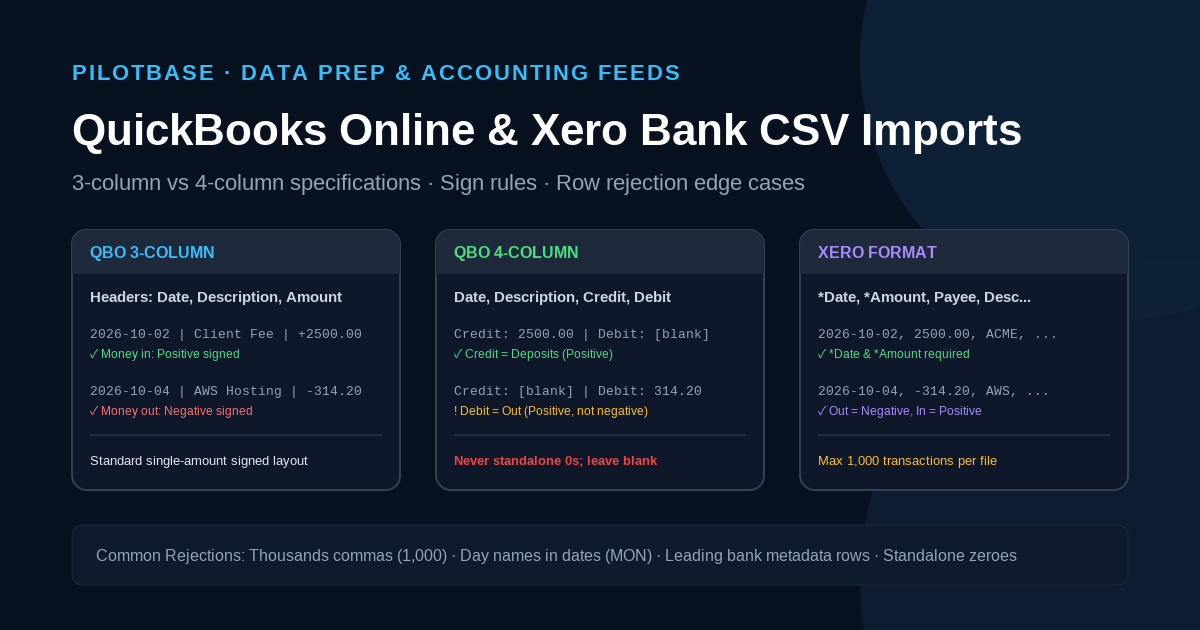
The QuickBooks 3-column layout: single signed amount
The simplest structure accepted by QuickBooks Online is the 3-column CSV format. It uses exactly three columns in this order: Date, Description, and Amount.
The sign convention in the 3-column format is critical: money in (deposits, client payments, refunds to you) must be positive, and money out (expenses, vendor bills, withdrawals, bank fees) must be negative, denoted with a standard minus sign (-). Never wrap negative amounts in parentheses (e.g. (314.20)), which accounting software often reads as text or ignores.
The QuickBooks 4-column layout: credit, debit, and the zero trap
When bank exports split incoming and outgoing cash into distinct columns, QuickBooks Online accepts a 4-column layout: Date, Description, Credit, and Debit (or Deposit and Withdrawal).
Two rules catch teams off guard in 4-column files:
• Both Credit and Debit amounts must be positive numbers. Money going out belongs in the Debit column as 314.20, NOT -314.20. Putting a negative number in the Debit column causes QuickBooks to either invert the transaction (turning an expense into phantom revenue) or fail validation.
• Non-active cells must be empty (blank), never 0 or 0.00. Intuit's official CSV documentation explicitly instructs users to clear standalone zeroes. A row representing a deposit should have an empty string in the Debit column (2500.00,), not 2500.00,0.00. Standalone zeroes frequently trigger validation errors during mapping.
The Xero CSV format: required headers and volume limits
Xero's official bank statement template specifies five standard columns, with two mandatory fields marked with an asterisk: Date, Amount, Payee, Description, and Reference.
Xero handles amounts like QuickBooks' 3-column layout: money spent is negative (-314.20) and money received is positive (2500.00). While Xero's interactive mapping interface allows pairing separate 'Spent' and 'Received' columns if present, its standard CSV parser works best on a unified signed Amount column.
Xero imposes a hard operational limit: maximum 1,000 transactions per CSV file. Uploading a statement containing 1,001 rows triggers a server Timeout Error. If you are importing an entire fiscal year of active transactions, split the file into monthly or quarterly batches before importing.
Worked case: converting a multi-page PDF statement batch
To measure real-world conversion accuracy, we processed a two-month business bank statement set (September and October 2026) containing 42 raw line items, multi-page page breaks, and running balance figures. We converted the statements using Pilotbase's free PDF to Excel & CSV tool (which runs entirely in your browser using pdf.js and WebAssembly without sending financial files to any remote server).
When opening the PDF batch converter at pilotbase.pro/tools/pdf-to-excel, dropping both PDF files at once automatically triggers batch mode. It verifies that September's closing balance matches October's opening balance ($15,110.20), deduplicates two transactions appearing on both statements, and lets you download pre-formatted QuickBooks 3-column, QuickBooks 4-column, or Xero CSVs with one click.
Eight documented CSV rejection rules and vendor errors
The table below details the eight most frequent CSV rejection triggers across QuickBooks Online and Xero, the specific errors they cause, and the exact syntax requirements to pass validation.
| Rejection Trigger | Platform Affected | Observed Error / Consequence | Required Fix |
|---|---|---|---|
| Standalone zeroes (0 or 0.00) | QuickBooks Online (4-col) | Amount column validation error or row skip | Leave cell completely empty (blank), never 0 |
| Thousands separators (1,250.00) | Xero & QuickBooks | Column shifted into adjacent cells, or 100x multiplier | Format Amount as plain numbers without commas (1250.00) |
| European decimal comma (1250,50) | Xero | Comma stripped, amount multiplied 100x (125050.00) | Replace decimal commas with periods before import |
| Currency symbols ($, £, €) | QuickBooks & Xero | A column has data in the wrong format / Not a number | Strip all currency symbols; use numeric decimals only |
| Day of week in date (2026-10-04 Sun) | QuickBooks Online | Please make sure your dates match the selected format | Remove text names; leave purely numeric dates (YYYY-MM-DD) |
| Negative values in 4-column Debit | QuickBooks Online | Debit flipped to credit or double-negative rejection | Values in Credit AND Debit must both be positive numbers |
| Header metadata rows (bank headers) | QuickBooks & Xero | No valid statement data / The file is missing headers | Delete all account summary rows above the table header |
| File over 1,000 transactions | Xero | Server Timeout Error during statement processing | Split statement into monthly batches under 1,000 lines |
Step-by-step: preparing a bank CSV for error-free import
Follow this checklist before uploading any statement export:
1. Row 1 must be headers: Open the CSV in a text editor or spreadsheet. Delete any bank disclaimers, account numbers, or date range notices above the table headers.
2. Check the Date format: Ensure all dates follow a consistent format throughout the entire file (e.g. YYYY-MM-DD or DD/MM/YYYY). Verify there are no weekday names like Mon or Fri.
3. Inspect the Amount column: Remove thousands commas (1,500.00 → 1500.00), currency signs ($), and trailing spaces. In 3-column files, confirm expenses carry a minus sign (-85.40). In 4-column files, confirm debits are positive numbers and credit cells are blank.
4. Delete trailing blank rows: Scroll to the bottom of the spreadsheet and ensure there are no empty rows with stray commas.
5. Export as Windows CSV: On macOS, save as standard Comma Delimited CSV rather than legacy Macintosh CSV.
If you are starting from PDF statements or scanned bank records rather than a clean bank export, you do not need to transcribe them manually or write custom cleaning scripts. Use pilotbase.pro/tools/pdf-to-excel to parse multi-page tables, check opening and closing balance arithmetic, and export verified, ready-to-import CSVs formatted directly for QuickBooks or Xero.