A shop with a counter, a web store and a few ads ends up with its numbers in four or five places. Square knows what sold at the till, Shopify knows the online orders, and Meta and Google know what the ads cost. The question you want answered is simple: per week, what came in, what went out on fees and ads, and what was left. Nobody hands you that table, so once a month it gets built by hand in a spreadsheet.
Square's seller forum is full of that monthly routine: export the month's transactions, split card from cash, book the fees, then match the deposits from a second file. One seller there found that merging the transactions file with the items file made the sales tax come out wrong, and only got it right after rebuilding the merge in Power Query. The traps are predictable, so here they are with real numbers.
The sample month
Everything below comes from one made-up September 2026 for a small coffee shop that also sells beans online. The files are in the layouts the four systems export:
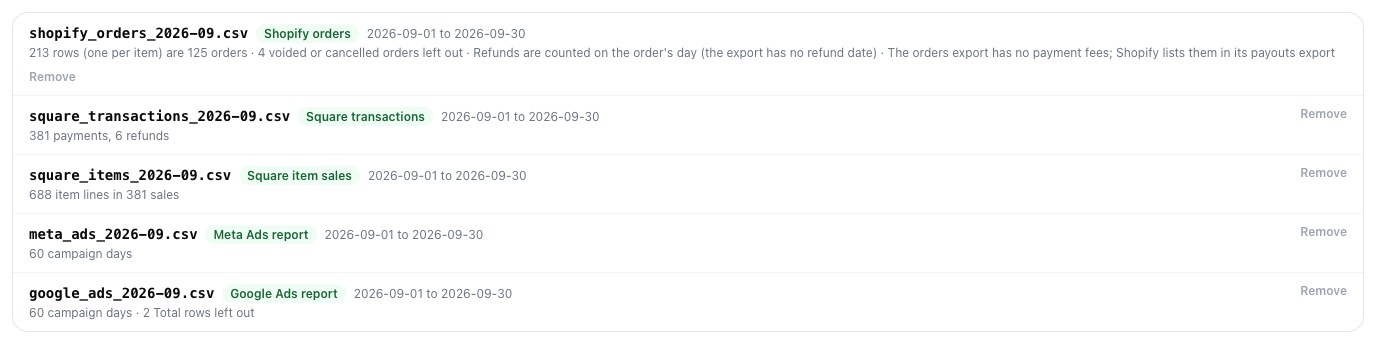
- Shopify orders export: 213 rows.
- Square Transactions CSV: 387 rows, with 381 payments and 6 refunds.
- Square Item Sales Detail: 688 rows for the same payments.
- Meta Ads report by day: 60 rows.
- Google Ads campaign report by day: 60 rows, plus its title lines and two total rows.
Trap 1: Shopify writes one row per item, not per order
Shopify's export has a row for every line item. The order's own fields (subtotal, shipping, taxes, total, financial status) are filled in on the first row of the order and left blank on the rows after it. Shopify's help page says so: many fields are blank to show that several items were bought in the same order.
In the sample, 213 rows are 125 orders, and 65 of those orders have more than one item. Count rows and you report 213 orders. Sum the Subtotal column as it comes and you get $7,524.90, which still includes 4 voided orders. The real figure for the 121 orders that went through is $7,146.60.
The worst version happens when someone fills the blank order fields down so the sheet can be sorted or filtered. That's a common habit, and here it turns $7,146.60 into $14,447.60: every multi-item order is counted once per item. The fix is to take each order's money from its first row only, keyed by the order name (#1001, #1002 and so on), and to leave out voided and cancelled orders.
Trap 2: Square's two files carry the same tax
Square gives you the month in two useful shapes. The Transactions CSV has one row per payment with gross and net sales, tax, tip, fees and the net total. The Item Sales Detail has one row per item sold, with its own net sales and its own share of the tax. Both are right on their own. Put them side by side and add up the tax from both, and the tax is counted twice: $584.53 in the transactions file, $584.53 again in the items file, $1,169.06 in the merge.
So the money (sales, tax, tips, fees, refunds) should come from one file only, the transactions file. The items file is worth keeping for the other question owners ask, which is what actually sold.
Trap 3: dates that move a day
Order #1121 was placed on 30 September at 22:41 shop time, written in the export as 2026-09-30 22:41:20 -0400. Turn that into UTC, which plenty of tools and formulas quietly do, and it becomes 02:41 on 1 October. The order moves into the next month. Its $114.65 goes with it, and so does any order placed late on the last day of a week.
The fix is to keep each date as the file wrote it, which is the shop's own day. Square writes its dates the same way, in the location's time zone. Weeks also need a rule: Monday to Sunday or Sunday to Saturday. In the sample, an order on Sunday 6 September at 23:30 falls in the week of 31 August under the first rule and the week of 6 September under the second.
Two smaller ones from the ad reports
Google Ads puts lines above the header. A downloaded campaign report starts with the report's name and its date range, then the column names, and ends with Total: rows. Paste it under another sheet and the totals get added to the days they total. The impressions also arrive as text like 1,204.
Meta reports are often for the whole month. If you exported campaigns without the Day breakdown, each campaign has one row from 1 to 30 September. That can't be put into weeks as it is. Either export again broken down by day, or spread the spend evenly over the days it covers and remember that the weeks are an estimate.
The table, built from the five files
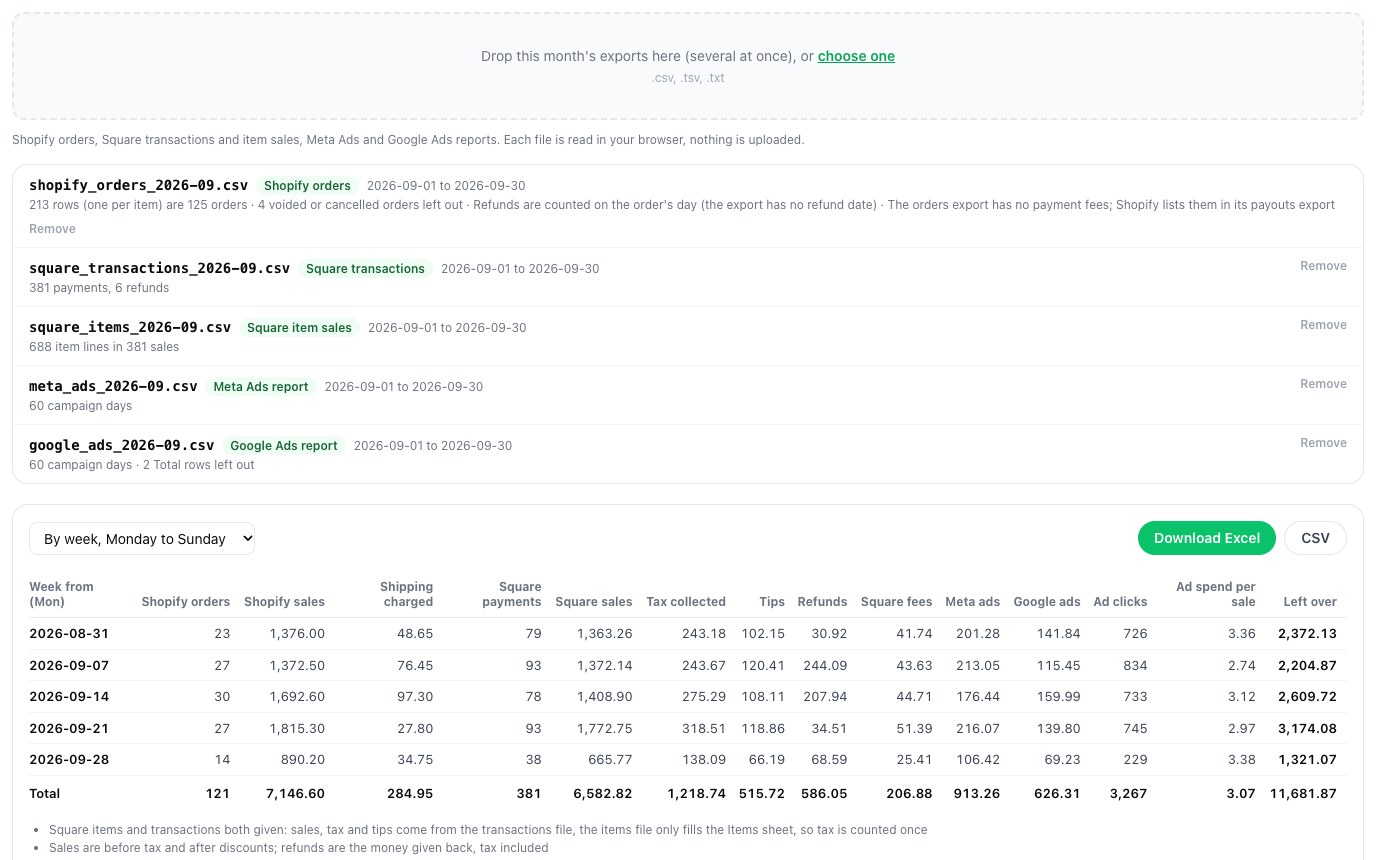
We built monthlyBook on Pilotbase's CSV tools to do this merge with those rules. Drop the month's exports onto the page, several at once. Each file is recognised by its columns, not its name, and gets a line saying what it was read as and what was left out:
Under it is the table, one row per week:

The columns:
- Sales: before tax and after discounts. That's Shopify's Subtotal and Square's Net Sales.
- Refunds: the money given back, tax included.
- Ad spend per sale: Meta plus Google spend divided by Shopify orders plus Square payments.
- Left over: sales plus shipping charged, minus refunds, Square fees and ad spend. Tax and tips aren't the shop's to keep, so they stay out of it.
For September that's $11,681.87 left from $13,729.42 in sales, with $1,539.57 spent on ads, or $3.07 per sale.
Switch to one row per month for the bookkeeper, or to Sunday-to-Saturday weeks:

Download it as Excel with four sheets:
- the table with its total row;
- a Daily sheet;
- an Items sheet built from Square's item file;
- a Checks sheet listing every file, what it was read as and what was left out.
There's a CSV download too. Download a file twice and drop both, and the repeated orders, payments and ad days are counted once. The files are read inside your browser tab and never uploaded, and you don't need an account.
What it doesn't do (yet)
The Shopify orders export has no payment fees in it. Shopify lists those in its payouts export, which this doesn't read yet, so the fees column is Square's only. Refunds in the Shopify export have no date of their own, so they count on the day of the order. Bank deposits, the Square Balance file and payouts aren't matched. It reads the four export layouts above. A file it doesn't recognise is listed and left out, so it never gets silently added in.
Compared with a connector
Tools that pull these sources into one sheet automatically charge by the number of sources. Coupler.io's free plan covers one source and 100 rows a run with manual refresh. Its Starter plan is $24 a month billed yearly ($32 monthly) for three sources and 5,000 rows a run. Fivetran added a $5 minimum per connection in 2026. That's worth paying if you want the numbers every morning. If you look at them once a month and already have the exports, a free merge that knows the traps is enough.
Drop this month's Shopify, Square and ads exports and get one table by week or month. It runs in your browser, and the files never leave your computer.
Open monthlyBookSources: Shopify Help Center, Exporting orders (one row per line item, blank order fields on further rows; Financial Status, Paid at, Refunded Amount); Square Seller Community, Manual entry of monthly sales data to QuickBooks Online and Is there a report that can easily give me the transaction fees (the Transactions CSV with Fees and Net Total); Coupler.io pricing (read 25 October 2026); Fivetran docs, 2026 pricing updates. The sample month is made up; the files and the script that makes them are ours.