Self-hosted deployment panels have become very good at running databases. In Coolify, Dokploy, Easypanel, Openship or Doktainer you click PostgreSQL or MySQL, and a minute later your app has a database on a private Docker network. Then you need to look inside it, and there is no obvious way in.
The request keeps coming up. On Openship, issue #968 asks for "integrated database management tools such as phpMyAdmin, pgAdmin, or DbGate directly to the database service, similar to Easypanel". The same request is open on Doktainer as #8. Until a panel builds it in, you can add a database GUI yourself. This guide does it with Pilotbase, an open-source (MIT) client for PostgreSQL, MySQL, MongoDB, Redis and 15 other engines, but most of it applies whichever web client you pick.
The one rule: don't publish the database port
The quick fix is to expose 5432 or 3306 on the server and connect a desktop client to it. Don't. A database port open to the internet gets password-guessing traffic within hours, and the panels keep databases on an internal network for a good reason. The better shape is the opposite one: put the GUI inside the same private network as the databases, and put the GUI, not the database, behind your panel's HTTPS proxy and a login.
That gives you three pieces: the GUI container joined to the panel's network, a read-only database user for day-to-day browsing, and authentication in front of the GUI's URL.
1. Find the network and the internal host name
Every panel gives each database an internal address that other containers on the same network can reach. Where to find it:
Easypanel: the database service's Credentials tab shows the internal host and an internal connection URL; services in the same project use it. Coolify: resources can join the shared coolify network ("Connect to Predefined Network" on a Compose stack), and a database in another stack is reached by its full container name, such as postgres-<uuid>. Dokploy: services share the external dokploy-network. Openship, Doktainer and anything else Docker-based: ask Docker directly.
The second command prints the networks the database container is on. Note the network name and the container (or service) name: that name is the host you'll type into the GUI, and the port is the database's internal port (5432, 3306), not a published one.
2. Run Pilotbase on that network
Pilotbase publishes a multi-arch image (amd64 and arm64) on the GitHub Container Registry. It keeps its own small Postgres for saved connections and query history, so the stack has two services. Add it to your panel as a Docker Compose app:
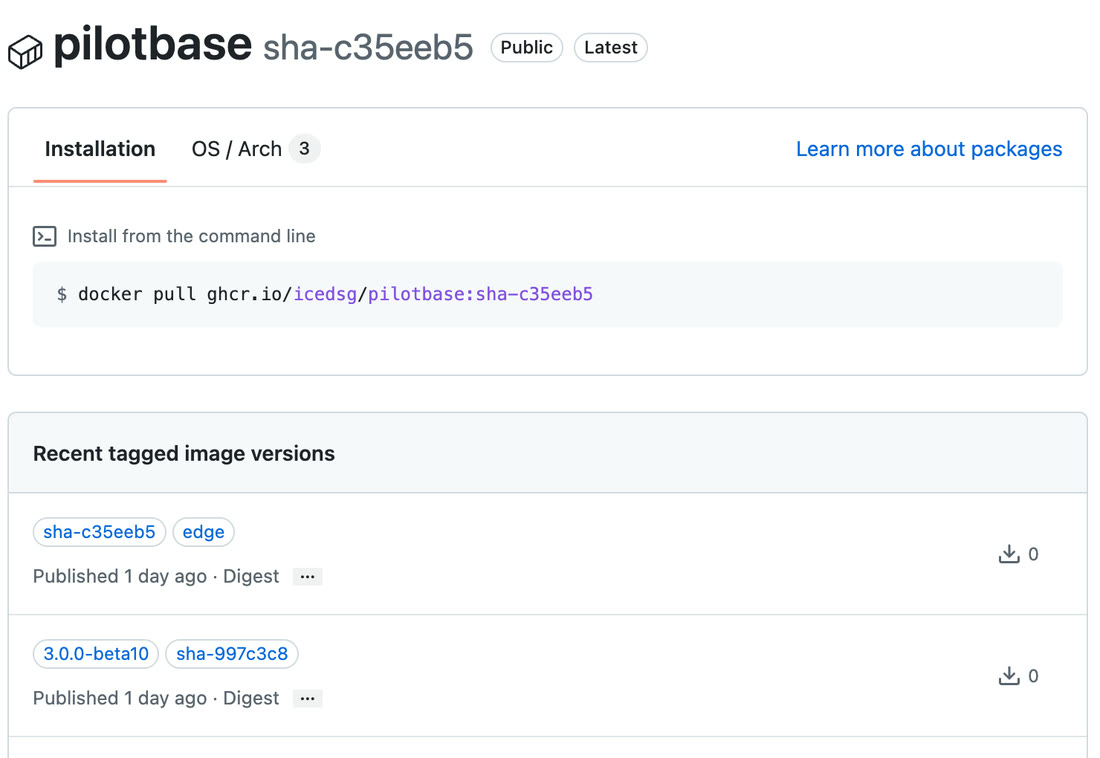
Set the three variables in the panel's environment section. Generate them once and keep them. ENCRYPTION_KEY encrypts every saved connection password, so if it changes later Pilotbase can no longer read them and you'll have to re-enter each one.
Then attach a domain such as db.example.com to the pilotbase service on port 8000 in the panel's UI. The panel's proxy (Traefik or Caddy, depending on the panel) issues the certificate. Nothing is published on the host.
3. Put a login in front of it
This step isn't optional. Self-hosted Pilotbase runs in single-user mode by default: there is no login screen, and each browser gets its own workspace via a cookie. A stranger who finds the URL can't see your saved connections, but they get a database client sitting inside your private network, and they can try to log in to anything on it.
So protect the domain at the proxy. Easypanel has HTTP basic auth on each service and Dokploy on each application. For Compose stacks and on Coolify, Traefik's basic-auth middleware works through labels. A VPN such as Tailscale or WireGuard, or an access proxy that asks for a login before forwarding, is better still. Whichever you use, check from a private browser window that the URL asks for credentials before Pilotbase loads.
4. Connect with a read-only user
Most of the time you are looking, not changing. Create a user that can only read, and save that as the everyday connection. On PostgreSQL 14 and later one built-in role does it:
We tried the Postgres one: SELECT count(*) FROM orders works, and an UPDATE fails with permission denied for table orders. Keep the owner account for the rare write, saved as a separate connection with an obvious name.
In Pilotbase, click + in the Connections panel. The host is the internal name from step 1, the port is the internal port, and Test Connection lists the databases it can see.
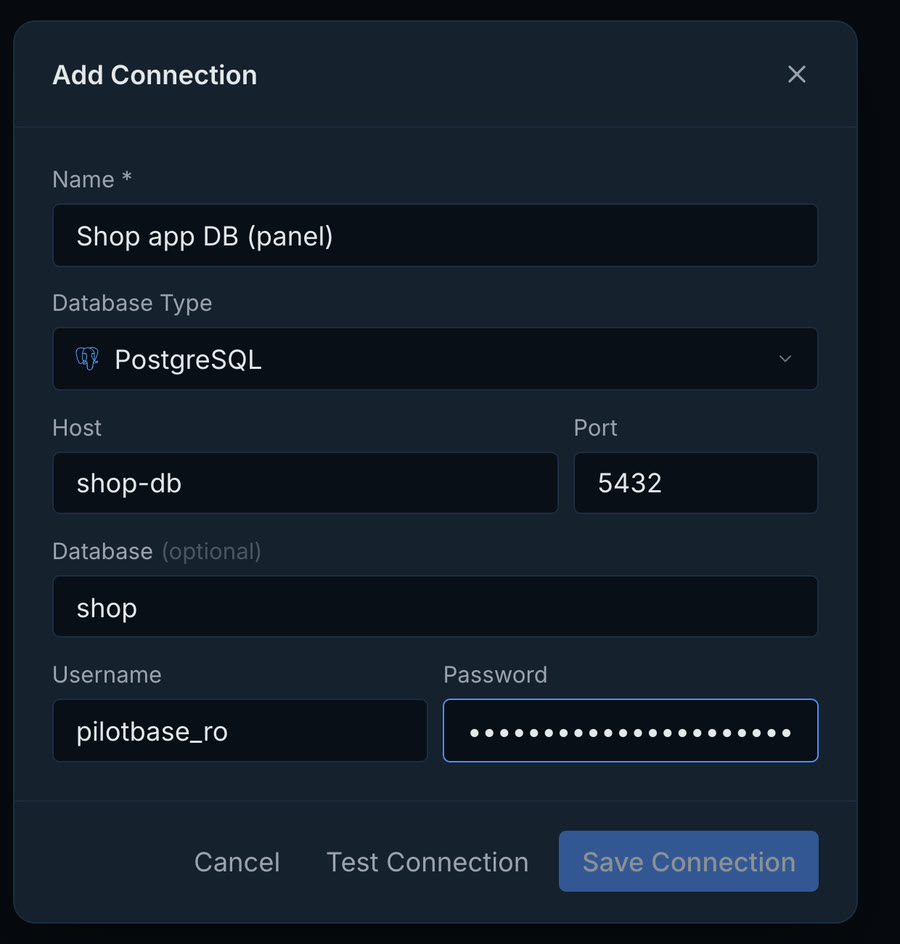
If the test times out, the two containers are not on a shared network: re-check the network name in the Compose file. If it is refused, the host or port is wrong; use the container's internal port, not a host mapping.
What you get
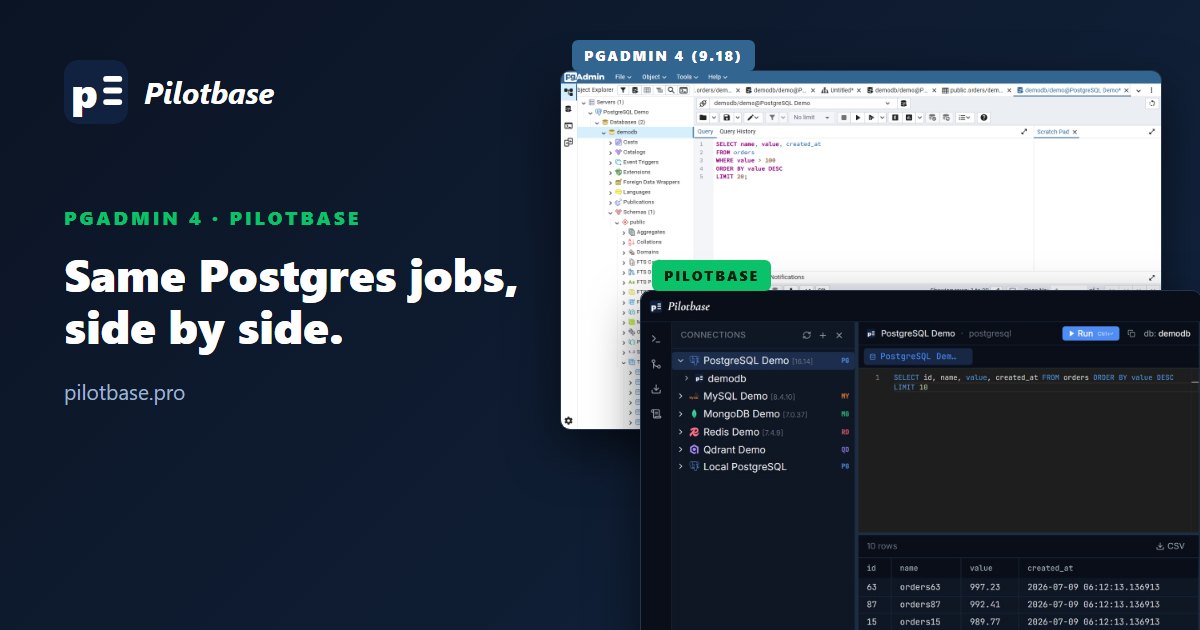
Once it is connected, you browse schemas and tables, run queries with results you can export to CSV, and keep the history of what you ran. One client covers the engines a panel typically offers (PostgreSQL, MySQL, MariaDB, MongoDB, Redis) instead of a phpMyAdmin for one and a pgAdmin for another.
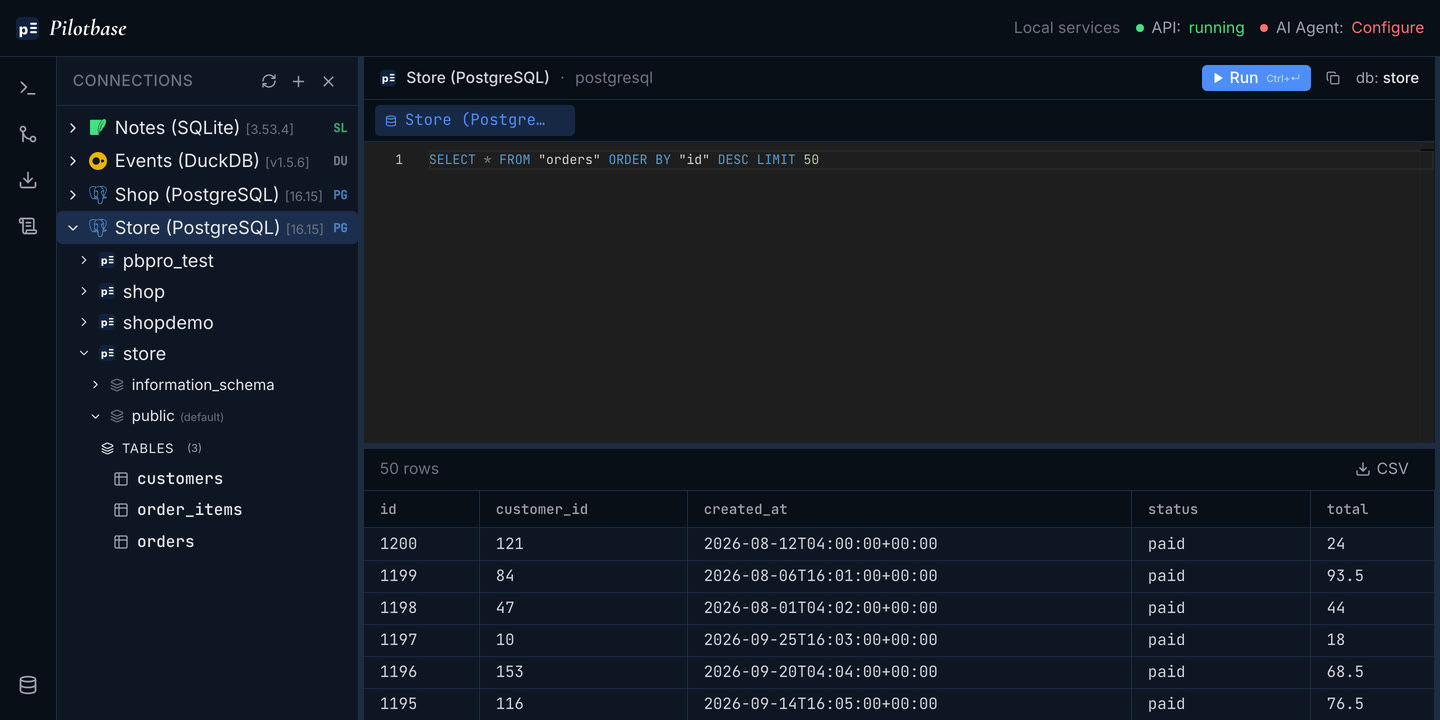
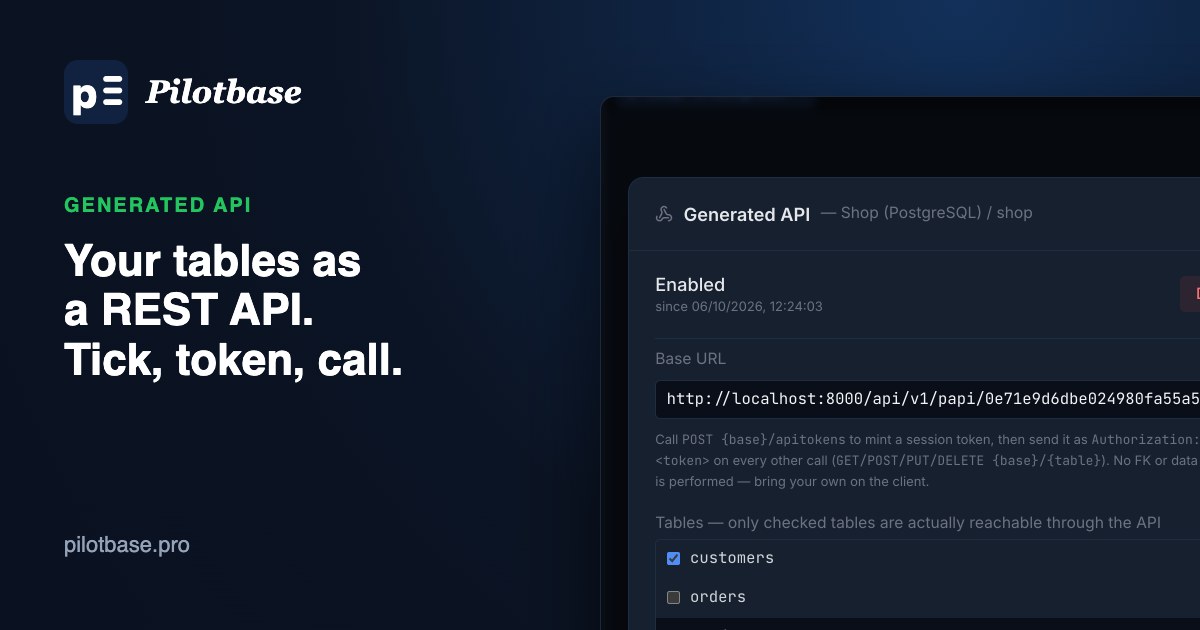
Running inside the server also makes two things practical that a laptop client can't do as well. Backups run next to the database and are written to the pilotbase_backups volume (more in Migrate, back up, and expose your data safely). And on the Docker build you can turn tables into a REST API for an internal tool without writing a backend.
If you'd rather use something else
It's a fair choice. Adminer is one PHP file and covers MySQL, PostgreSQL, SQLite and more. DbGate is a capable multi-engine client (GPL-3.0) and is what Easypanel builds in. pgAdmin and phpMyAdmin are the deepest tools for their one engine each. The pattern above (same private network, no published database port, login at the proxy, read-only user) is what keeps any of them safe. Pilotbase's case is one MIT-licensed client for every engine on the server, with an optional AI agent that writes queries and waits for your approval before any write.
Run Pilotbase next to your databases: one image, every engine your panel runs, MIT-licensed.
Get PilotbaseSources: Openship issue #968, Doktainer issue #8, Easypanel docs, Coolify: service networking, Dokploy: Docker Compose, PostgreSQL predefined roles, Pilotbase installation guide.
Comments (0)
Loading comments…