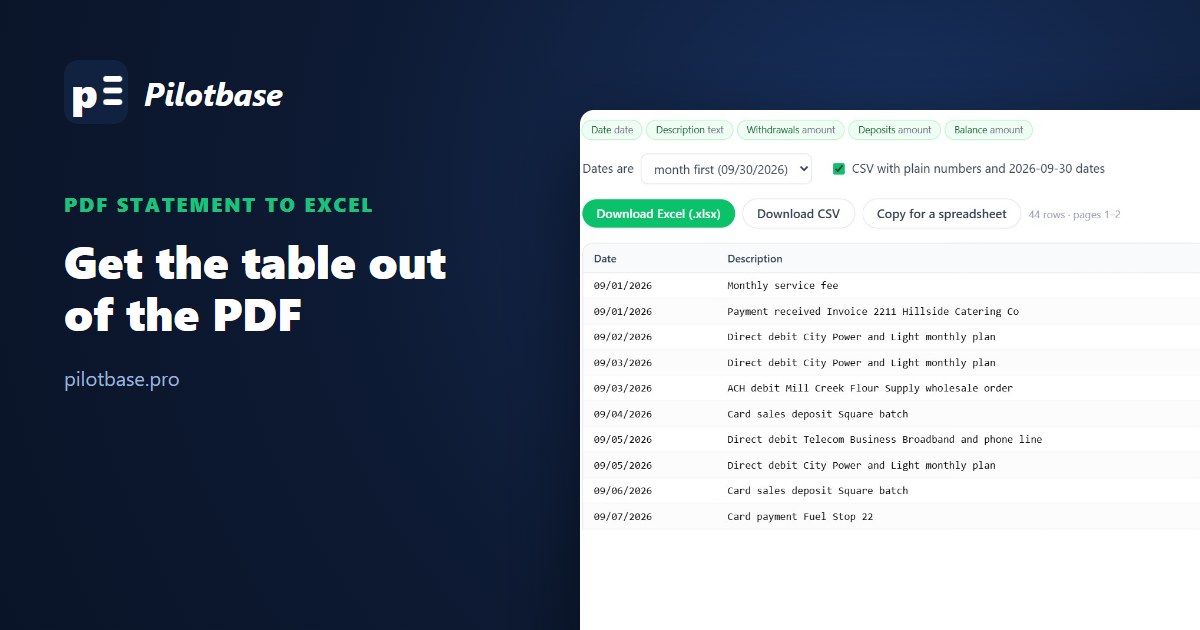
Your accountant wants last year's transactions in a spreadsheet. The bank's download button only goes back a few months, and for everything older there's a pile of monthly PDF statements. So you open one, select the table, paste it into Excel, and get a single column of text with the dates, payees and amounts all run together.
That happens because a PDF doesn't store a table. It stores bits of text and where to draw them on the page. The rows and columns you see are only there because things happen to line up. Getting them back means working out the lines and columns from those positions, and that's the whole job.
First, check for a real export
Before you convert anything, look in your online banking for "Download transactions" or "Export". If it offers CSV, Excel, QFX or OFX for the months you need, use that. It comes straight from the bank's records, so there's nothing to get wrong. PDFs are for the months the export doesn't cover, for a closed account, or for statements someone emailed you.
Three ways to get the table out
Excel's own PDF import. Excel for Microsoft 365 on Windows has Data > Get Data > From File > From PDF. It finds the tables and lets you load them. It often treats each page's table separately, so a statement that runs over three pages means appending them, and descriptions that wrap onto a second line can come through as rows of their own. On a Mac the PDF option has been missing for years, so check your version before counting on it.
An online converter. Most of them upload the file to their server and email or send back a spreadsheet. They work, but that statement has your account number, your balance and everyone you paid on it. Read their privacy policy before you send them a year of statements.
A converter that runs in the browser. We built pdfTables for this. The PDF is read inside the browser tab on your computer and never sent anywhere. Close the tab and it's gone. Here's a two-page statement for a made-up bakery:
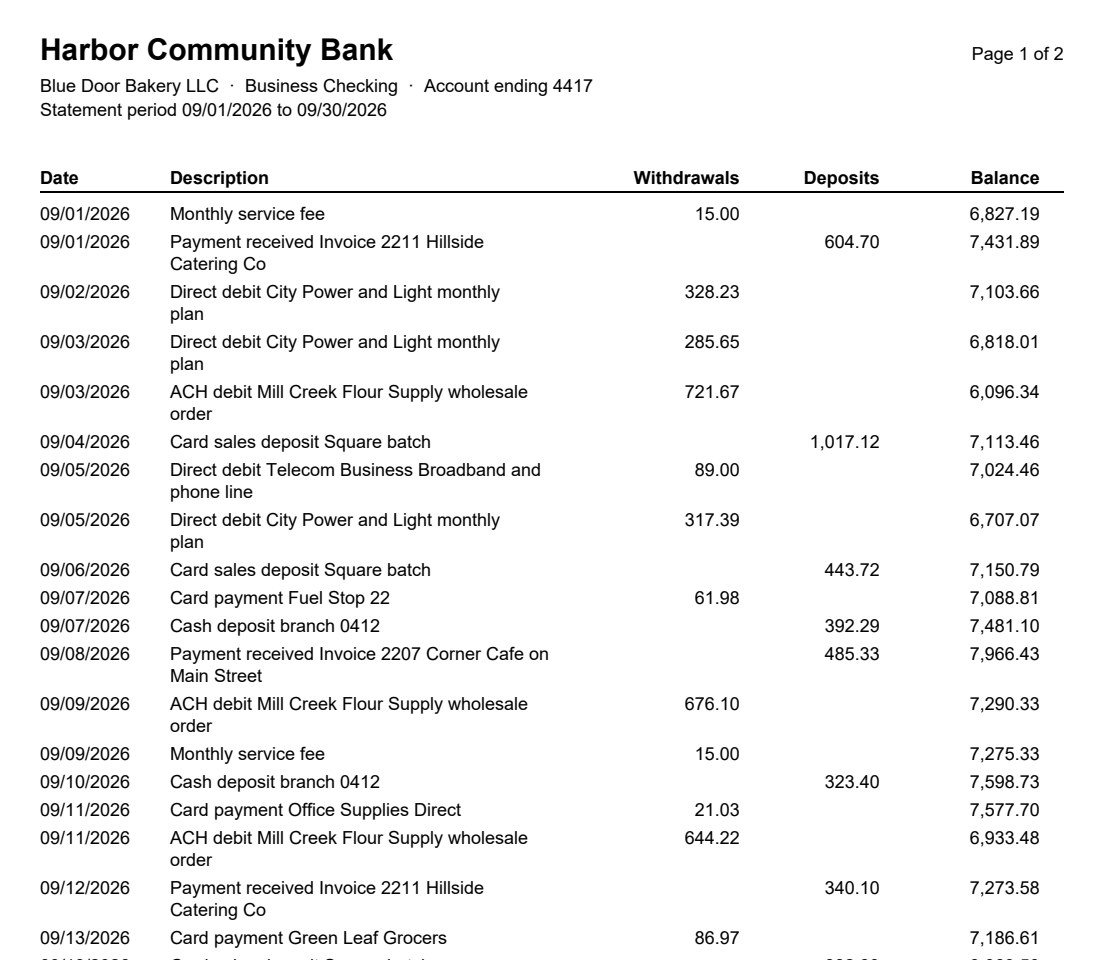
Drop it on the page and you get one table of 44 rows. The two pages are joined, the repeated header on page 2 is dropped, and "ACH debit Mill Creek Flour Supply wholesale order" is one cell again rather than two rows. Each column is labelled as text, a date or an amount, so you can see what it understood before you download anything.
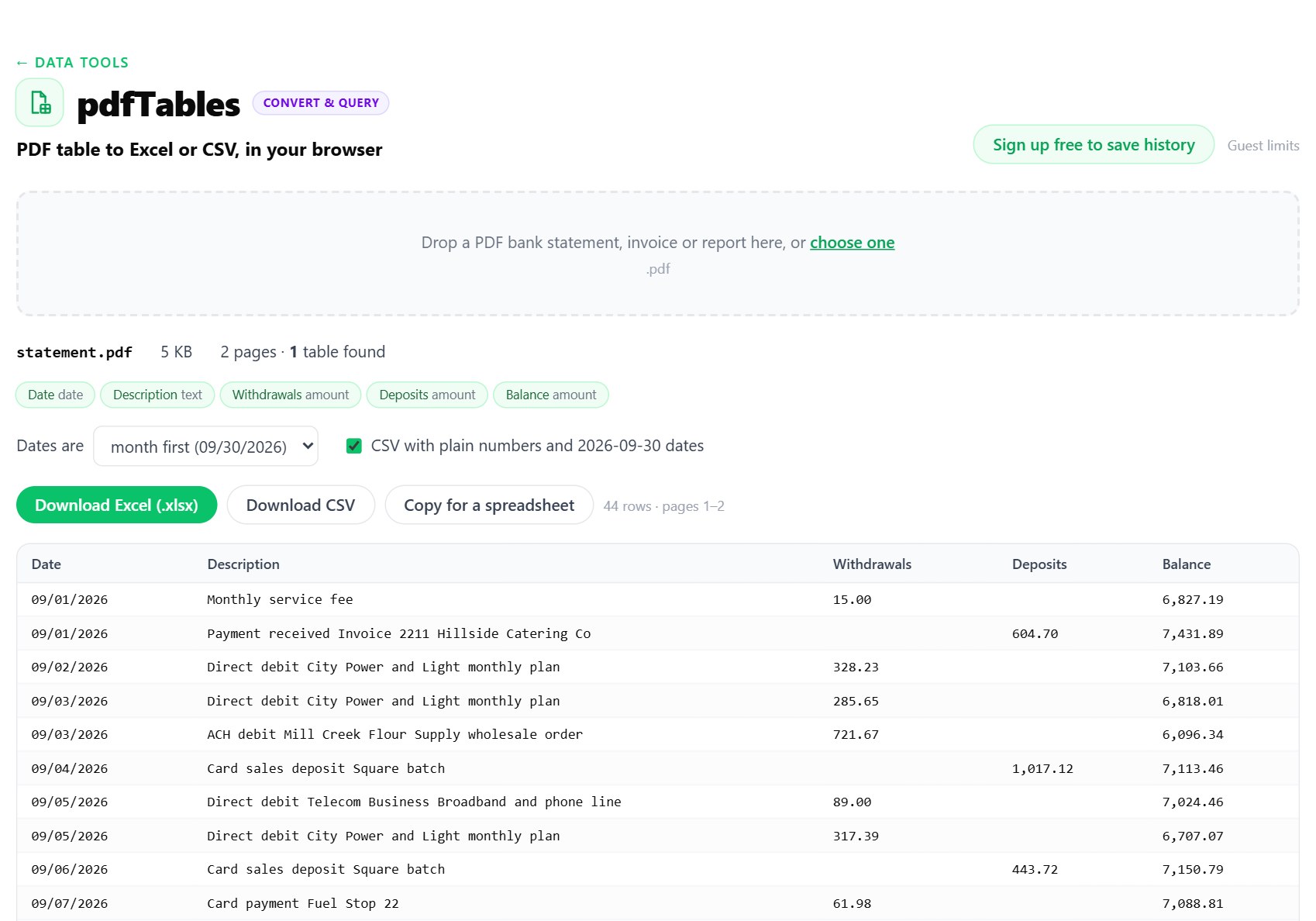
Download Excel gives you a file where the amounts are numbers and the dates are dates, so SUM, filters and pivot tables work straight away. Download CSV gives you plain numbers and dates written as 2026-09-30, which every accounting tool and import screen understands. Copy for a spreadsheet puts the table on the clipboard so you can paste it into a sheet you already have.
The two things that go wrong: dates and minus signs
Dates. 03/04/2026 is March 4 in the US and 3 April in the UK. If a statement has a date like 30/09/2026, the order is obvious, and the tool picks it. But a short statement where every date is the 12th or earlier reads both ways. Excel then guesses using your computer's settings, and gets it wrong silently: your April payments end up in March. When the dates could go either way, pdfTables says so, leaves them as printed and asks you to pick month first or day first.
Some banks, a lot of UK ones among them, print the date only on the first transaction of each day and leave it blank on the rest. That's fine on paper and useless in a spreadsheet, because the moment you sort or filter, those rows lose their day. The tool spots this and fills each date down to the rows under it, with a box to turn it off.

Minus signs. Statements show money going out in a lot of ways: a separate Withdrawals column, -12.00, (12.00) in brackets, 12.00- with the minus at the end, or 12.00 DR. Card statements often show a refund as 12.00 CR. Pasted into Excel, most of these stay text, and text doesn't add up. They all become proper negative or positive numbers, and £, $ and € signs and the thousands commas are taken off. European amounts like 1.234,56 are read as well.
Check it before you hand it over
Any conversion can get a row wrong if the PDF draws it in an odd way, so check the result once. If the statement has a running balance, that's easy. With Date, Description, Withdrawals, Deposits and Balance in columns A to E and the first transaction in row 2, put this in F3 and fill it down:
It takes the previous balance, subtracts what went out, adds what came in and compares that with the balance the bank printed. Every row should say 0. A number anywhere else means that row has an amount in the wrong column or a missing line, and the size of the number usually tells you which transaction it is. For a statement without a running balance, check that the column totals match the statement's own totals at the bottom.
What it can't do
It reads the text a PDF carries. A statement downloaded from online banking or an accounting system has that text. A scan or a phone photo of a paper statement doesn't, it's a picture of a page, and pdfTables will tell you it found no text rather than guess. For those you need OCR, and it's worth asking the bank for a downloaded copy first, because OCR on numbers needs checking line by line.
It works the same way for supplier invoices, price lists and most reports that are a table with a header. If a page has more than one table, you pick which one you want.
Open a PDF statement or invoice and download the table as Excel or CSV. It runs in your browser, and the file never leaves your computer.
Open pdfTablesSources: Microsoft Support, Import data from data sources (Power Query) (Data > Get Data > From File > From PDF); Microsoft Q&A, Power Query on Mac: Get File > PDF (the PDF connector missing in Excel for Mac). The statement in the screenshots is made up: bank, business, names and amounts.

Comments (0)
Loading comments…