A report query takes 80 ms on your laptop and 4 seconds in production, or a page that used to be instant isn't any more. EXPLAIN ANALYZE tells you exactly why, but it answers in a wall of indented text with a dozen numbers per line, and most people skim it, spot the words "Seq Scan" and add an index somewhere. Sometimes that works.
This guide is a way to read a plan in a couple of minutes: start at the top, follow the time down the tree, and stop at the node where it's actually spent. Then it covers the five node types you'll meet in almost every plan and the one or two lines on each that matter. Every plan below is real, from PostgreSQL 16 on a test shop database with 2 million orders and 200,000 customers. You can paste any of them, or your own, into our free explainViewer, which does the arithmetic for you.
Before you run it
EXPLAIN on its own only shows the plan the database intends to use, with estimates. EXPLAIN ANALYZE runs the query for real and adds what actually happened. That has two consequences. First, it takes as long as the query does. Second, an UPDATE or DELETE really changes data, so wrap those in a transaction you roll back:
Add BUFFERS: it shows how many 8 kB pages each node read from shared memory (hit) or had to fetch from the OS or disk (read), which tells you whether a slow node is slow because of I/O. From PostgreSQL 18 ANALYZE turns BUFFERS on by default. And run the query twice: the first run after a restart reads from disk, the second mostly from cache, and the difference can be larger than anything you're trying to tune.
One line of a plan, decoded
The first bracket is the planner's guess, made before running anything: cost is in the planner's own units (not milliseconds) as startup..total, rows is how many rows it expects this node to return, and width is the average row size in bytes. The second bracket is what happened: actual time in milliseconds from start to the first row and to the last row, rows returned, and loops, how many times this node ran. Two things trip people up here. Time and rows are per loop, so a node with loops=743 really took 743 times what it says. And each node's time includes everything below it.
Read it top-down
Here's the query we'll work through: the top 20 customers in Great Britain by revenue from paid orders this month. There's no index on orders.created_at yet.
Five steps, in this order:
1. Start with the last line. Execution Time: 83.818 ms is the whole query, and Planning Time is what the planner needed to choose the plan. If planning is a large share of the total (it happens with very many partitions or huge IN lists), no index will help.
2. The top node's time is the query's time. Limit finished at 83.8 ms, so that's the budget. Because every node's time includes its children, you can walk down the tree and watch where the time stays and where it drops away.
3. Follow the time down until it stops. Sort 83.8 ms, HashAggregate 83.3 ms, Hash Join 80.7 ms. Under the join there are two children: Seq Scan on orders at 67.1 ms and Hash at 9.4 ms. The time follows the first one, and it has no children, so its own time is all 67.1 ms: 80% of the query in one node. That's the one to look at. (A node's own time is its total minus its children's totals, after multiplying each by its loops.)
4. Compare estimated and actual rows on the way. Here they're close everywhere (72,038 estimated, 73,378 actual for the scan), so the planner had a good picture. When they differ by 10× or more, the plan is built on a wrong picture, and that's often the real bug. More on that below.
5. Read the detail lines of that node. Rows Removed by Filter: 1926622: to return 73,378 orders, Postgres read all 2 million and threw 96% of them away. That's what an index is for.
Run it again and the scan becomes a Bitmap Index Scan on the new index feeding a Bitmap Heap Scan, which takes about 6 ms instead of 67. The whole query goes from 83.8 ms to 21.5 ms. Now the biggest node is the 8.8 ms Seq Scan on customers, which reads 200,000 rows to keep the 25,000 in Great Britain. That one is fine: when you need one row in eight, reading the table straight through is about as fast as using an index, and the planner knows it.
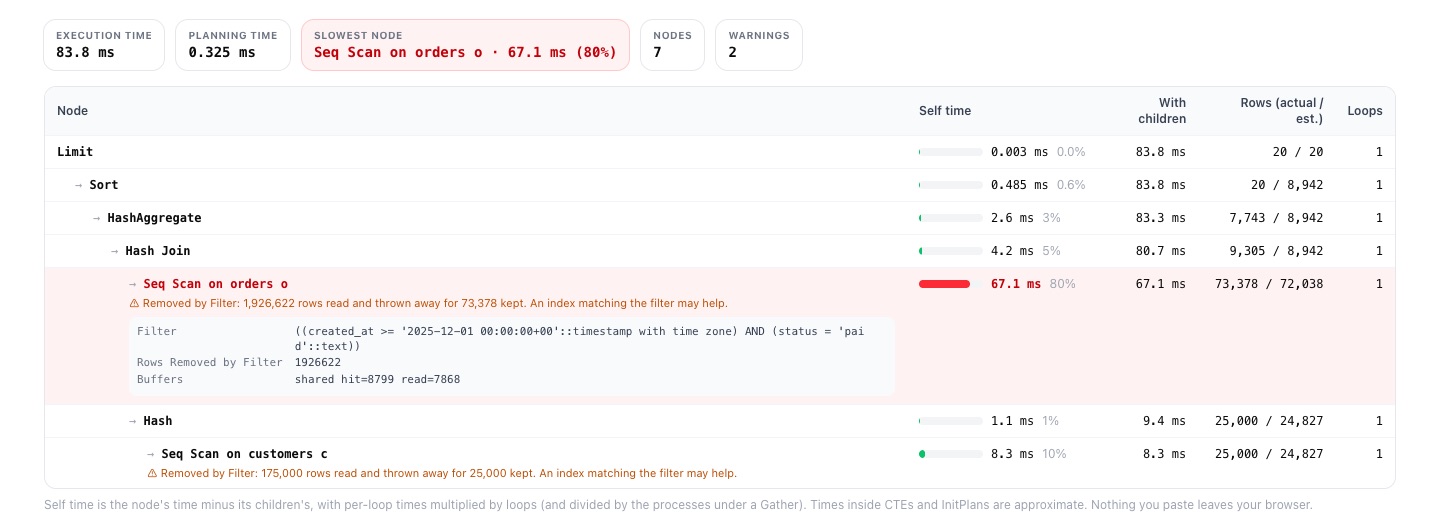
explainViewer does steps 2 to 4 for you: paste the text output (or FORMAT JSON) and it shows each node's own time, its share of the total, actual against estimated rows and loops, and flags the slowest node. It runs in your browser, so the plan, which often contains table names and literal values, isn't uploaded anywhere.
The five nodes that matter
Plans can contain dozens of node types, but a handful account for nearly all the time in everyday queries. For each, here's what it does and the line to read.
1. Seq Scan
Reads every row of the table, in physical order, and applies the Filter to each. It's the right choice for small tables and for queries that need a large share of the rows. It's the wrong one when Rows Removed by Filter is huge compared to the rows returned, as above. Check that the filter can use an index: a condition like date(created_at) = '2025-12-24' or lower(email) = ... can't use a plain index on the column, only an expression index or a rewritten condition (created_at >= '2025-12-24' AND created_at < '2025-12-25').
2. Index Scan, Index Only Scan, Bitmap Heap Scan
These three use an index. An Index Scan walks the index and fetches each matching row from the table, which is ideal for a few rows. A Bitmap Index Scan plus Bitmap Heap Scan first collects all matching row locations, then reads the table pages in order, which suits thousands of rows; Heap Blocks: exact=928 is how many table pages it touched. An Index Only Scan answers from the index without touching the table at all, if the table's visibility map is up to date. Watch its Heap Fetches line: a large number means it went to the table anyway, and a VACUUM of the table usually fixes it.
3. Nested Loop
For each row from its first (outer) child, it runs the second (inner) child once. This is where loops matters. The last 12 hours of orders with each customer's email:
The inner index scan says 0.002 ms, but it ran 743 times: about 1.5 ms in total, most of the 1.9 ms join. That's a good plan, because 743 quick lookups are cheap. Nested loops go wrong when the planner expects a handful of outer rows and gets hundreds of thousands: then the inner side runs hundreds of thousands of times. If you see a nested loop with a huge loops count on its inner side, look at the outer side's estimate.
4. Hash Join (and its Hash)
Builds a hash table from one input (the Hash child, usually the smaller one) and probes it with each row of the other. It's the workhorse for joining larger sets. The line to read is on the Hash node: Buckets: 32768 Batches: 1 Memory Usage: 1819kB. Batches: 1 means the table fit in memory. More than one means it didn't, and Postgres split the work into batches written to temporary files. The memory available is work_mem times hash_mem_multiplier (4 MB and 2.0 by default since PostgreSQL 15). Joining six months of orders (500,000 rows) to all 200,000 customers needed Batches: 2; with work_mem at 64 MB it went back to 1.
5. Sort
Sorts its input for ORDER BY, DISTINCT, merge joins or grouping. The Sort Method line says how: quicksort Memory: 77kB in memory, top-N heapsort when a LIMIT means only the first rows are needed (the cheap case in our first plan), or external merge Disk: 24064kB when it didn't fit in work_mem and spilled to temporary files. Here's that last case: half a million orders with customer emails, sorted by email then date.
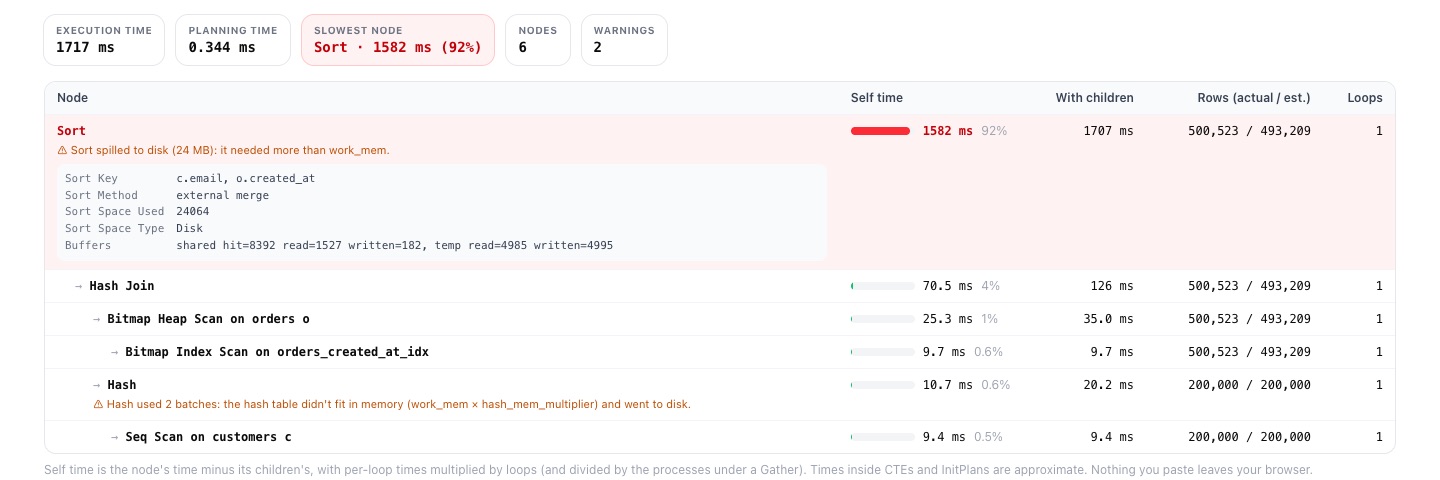
The obvious fix is more memory, so we ran it again with SET work_mem = '64MB'. The sort switched to quicksort Memory: 43571kB, with no disk at all, and the query took 1,584 ms instead of 1,717. Almost nothing. The spill was real, but it wasn't the cost: the cost was half a million string comparisons under a linguistic collation. Sorting the same rows by customer_id took about 220 ms with the spill and 195 ms without it, and sorting by email COLLATE "C" (plain byte order) took 265 ms, spill included. (Our test machine used the macOS en_IN collation; glibc and ICU collations are faster, but comparing text under any linguistic collation costs far more than comparing integers.)
The lesson generalises: a warning in a plan tells you what happened, and the node's own time tells you what it cost. Fix the node that owns the time. For this query the real fixes are to sort by something cheaper, to let an index on the sort columns provide the order, or to not sort half a million rows at all if the page shows fifty.
When the estimates are wrong
Every choice in a plan, scan type, join method, join order, rests on the row estimates. They come from per-column statistics collected by ANALYZE (autovacuum runs it for you), and the classic way they go wrong is correlated columns. Our customers table has a city column, and every city belongs to exactly one country. Postgres assumes columns are independent, so it multiplies the two selectivities:
124 estimated, 1,000 actual: eight times too few, because once you know the city, the country adds no information. Extended statistics tell the planner about the dependency:
The estimate becomes 997. In this query the plan didn't change, because a nested loop was still the right choice for a thousand customers. But the same error at 100× or 1,000× is how a query ends up with a nested loop running a million times. explainViewer flags any node whose actual rows are 10× or more above the estimate.
One mismatch to ignore: under a LIMIT, nodes stop early. In our first plan the Sort shows 20 rows actual against 8,942 estimated. That's not an estimation error, as the PostgreSQL documentation points out; the estimate is for running to completion.
Parallel plans
If you see Gather or Gather Merge with Workers Launched: 2, the nodes below ran in three processes at once (two workers plus the leader), and their loops=3. Here the times are averages per process, and the processes overlap, so multiplying by loops would overstate the wall-clock time about threefold. Read the times under a Gather as they are. explainViewer divides by the number of processes for you.
A checklist for the next slow query
Run EXPLAIN (ANALYZE, BUFFERS) twice, in a transaction you roll back if it writes. Read Execution Time, then follow the time down from the top node to the node whose own time is largest, remembering to multiply by loops. On that node, read the one line that matters: Rows Removed by Filter on scans, Heap Fetches on index-only scans, the inner side's loops on nested loops, Batches on hashes, Sort Method on sorts. Compare estimated and actual rows on the way down, and fix statistics before you fix anything else. Then change one thing and run it again.
If the problem is the data rather than the query, our guide to loading a messy CSV into Postgres covers getting types right at load time, which is where many slow filters start (a date stored as text can't use a date index). And if you're coming from MySQL, what a SQL translator fixes covers the queries that behave differently in Postgres.
Paste a plan into explainViewer and see where the time goes, free and in your browser. To run the query in the first place, Pilotbase connects to PostgreSQL and 18 other engines, with an AI agent that can write the query for you.
Open explainViewerSources: PostgreSQL documentation, Using EXPLAIN, EXPLAIN, Extended statistics and Resource consumption (work_mem, hash_mem_multiplier). All plans and timings are from our own runs on PostgreSQL 16.15.