The advice you find about scanning a bank statement for OCR is nearly always the same: use 300 dpi. It rarely says what happens at 200, or whether the black-and-white setting hurts, or how you would know if a digit came out wrong. If the statement is going into your books, that last one is the question that matters.
We make a tool that reads scanned statements, so we tested it. We scored 15,120 amounts across 180 scans. At 100 dpi, don't bother: the result ran from 80% of amounts right down to 2%. At 300 dpi every kind of scan got at least 95%. A phone photo needs more pixels than a flatbed scan, and the reason isn't what we expected. We also found a hole in our own balance check, which is further down.
What we ran
Five made-up statements, because a real one can't be published and because we need to know the right answer: three US statements, one UK statement and one card statement with no running balance. They have 8 pages and 420 amounts between them. Each started as a PDF with real text, which gives the correct figures.
We turned each into an image-only PDF at 100, 150, 200 and 300 dpi in three styles: a grey scan (light blur, a little noise, JPEG quality 85), a black-and-white scan (the same, then cut to pure black or white) and a phone-style photo (tilted 1.6°, darker away from one corner, more blur and noise, JPEG quality 60). Each combination ran with three different noise patterns. That's 5 × 4 × 3 × 3 = 180 scans and 288 pages.
Every scan then went through the same steps as Read this scan in pdfTables: straighten the page, wipe the ruled lines, run tesseract.js with the English model, build the table. An amount counts as right only if it parses to the same value in the same row and column. We ran this in Node on an Apple M4 Mac mini on 5 November 2026, ran the whole set a second time and got identical scores on all 180, then put three of the scans through the live page in Chrome. Every misread matched.
One limit to keep in mind: no paper was involved. These scans come from software, with one clean font and no creases, stamps or coffee rings. Real paper will do worse in ways we didn't test, so trust the differences between settings more than the exact percentages.
The result
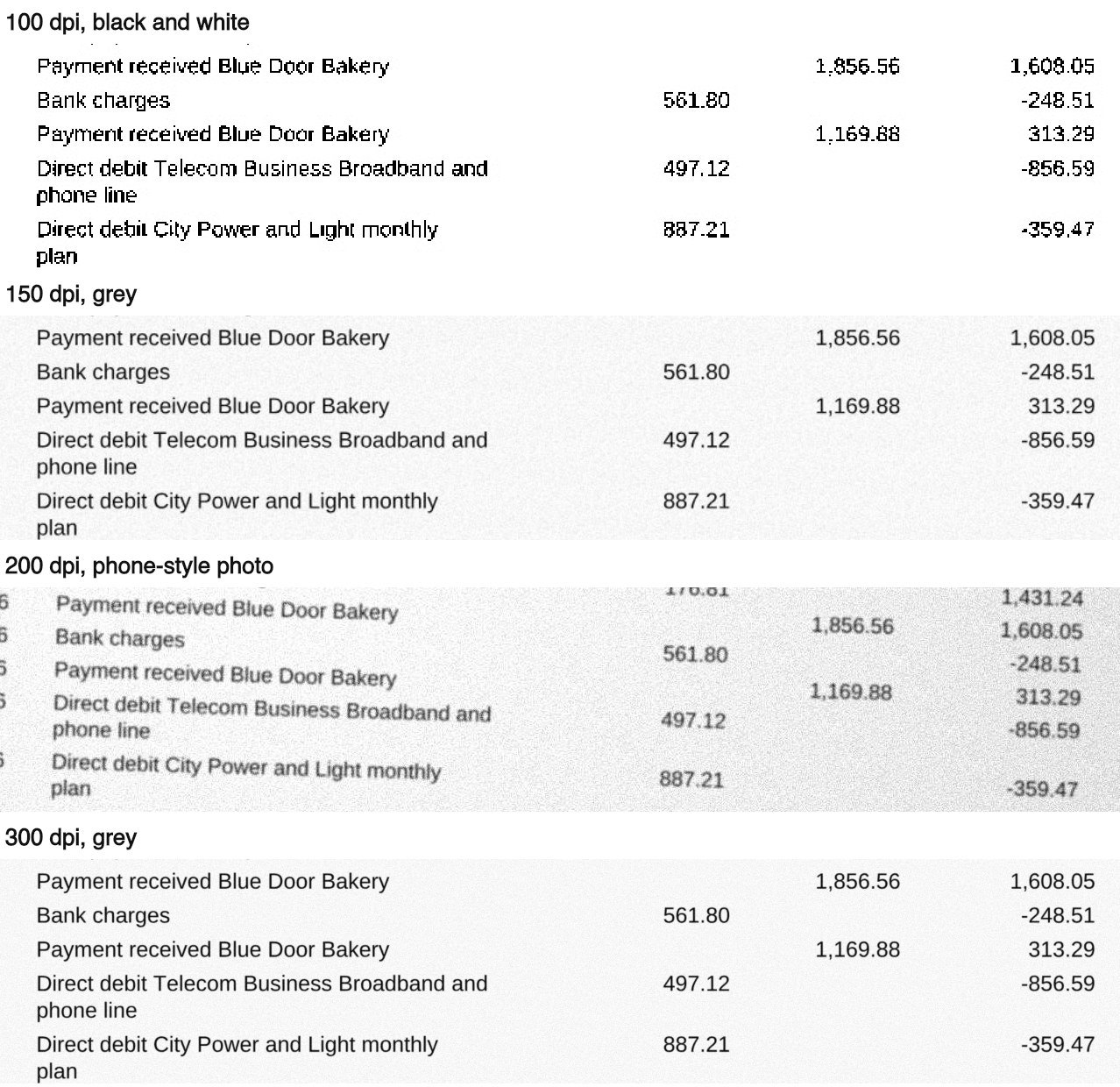
100 dpi is out, whatever the style. Black and white is the worst case to look at: at 100 dpi the thin strokes break up, 505.87 arrives as 205.87, 1,020.91 as 1.02081, and the dates turn to noise. Only 18 of 654 transactions came through with date, amount and balance all correct.
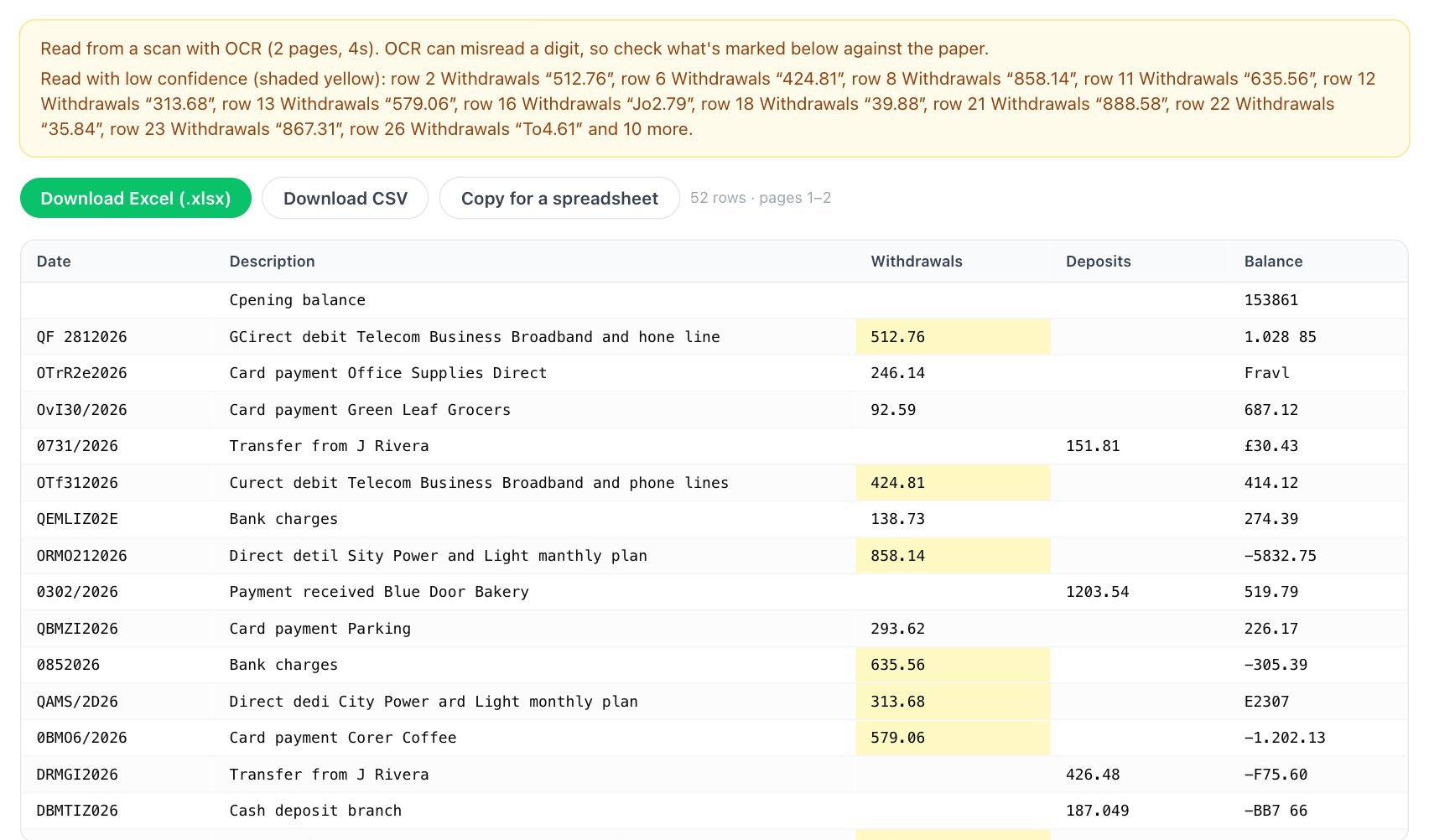
Notice what's missing from that page: the balance check. The tool guesses which column is which. On 13 of these 15 scans the guess came out wrong, and on this one that meant no check line at all until you set the columns yourself. Our scoring gave the tool the right columns, so the numbers in this article are a little kinder than the first thing you'd see at this quality.
Between 150 and 300 dpi, the grey scans all sit around 98 to 99.5%. Please don't read that as 150 beating 300. The gap is 6 wrong amounts against 21 out of 1,260, and our noise is added pixel by pixel, so a 300 dpi file keeps specks that a 150 dpi one blurs away when it's enlarged for reading. A speck beside a decimal point is how 13.21 became 13:21. Real scanners make different noise. We'd call those three a tie.
Black and white is the surprise, because it swings further than anything else: 36.7% at 100 dpi and the only perfect column in the test at 300. Our best guess at why: the cut to pure black or white wipes out noise, and at 300 dpi there are enough pixels left to keep every stroke. Lower down there aren't. If your scanner offers black and white, use it at 300 dpi or not at all.
A percentage also hides how often the whole statement is right, which is what you'd want before skipping the checking:
A 98% score still means a wrong figure somewhere in most statements. At 300 dpi, grey came out exact on only 4 of 15, and black and white on all 15.
Photos fail differently
We assumed a low-resolution photo would misread digits. Mostly it didn't. It lost the table:
At 200 dpi a photo had only 62 digits misread, fewer than the 93 of a black-and-white scan at 150. But 464 amounts weren't in the main table at all, because the rows and columns no longer lined up well enough for the reader. The statement came back as several short tables instead of one long one, and you can pick between them but not join them. At 300 dpi that nearly stops: 40 missing, all on the longest statement.
In pixels, 300 dpi on a US letter page is 2,550 × 3,300, about 8.4 megapixels. So a phone camera has enough, but only if the page fills most of the frame. Stand back to fit the whole desk in and you're down in the columns that failed.
Would you notice a wrong number?
This is the part that decides whether OCR is safe to use on money. We took the 105 scans at settings we'd use: grey and black and white from 150 dpi up, and photos at 300.
So about 95% of misreads had something on the page pointing at them. Of the 10 that didn't, 8 look wrong if you read the cell, such as =1.527.57 or 1.538:61. The other 2 look like perfectly good numbers: -1,527.57 read as -1,627.57 and 319.24 read as 315.24. Those are the ones that end up in your books.
Outside those settings it gets worse. Across all 180 scans, the card statement had 75 wrong amounts and only 14 were shown as doubtful, since a card statement has no running balance to test. On the four statements with a balance, 1,822 of 2,537 were shown. A running balance is worth a lot, and you don't have one on a card.
The hole in our balance check
The check on our page has a weakness this test exposed, and we'd rather tell you than have you find it. It works by adding each amount to the previous balance. When a balance cell doesn't read as a number at all, it can't test that row or the next, and it skips them without saying so.
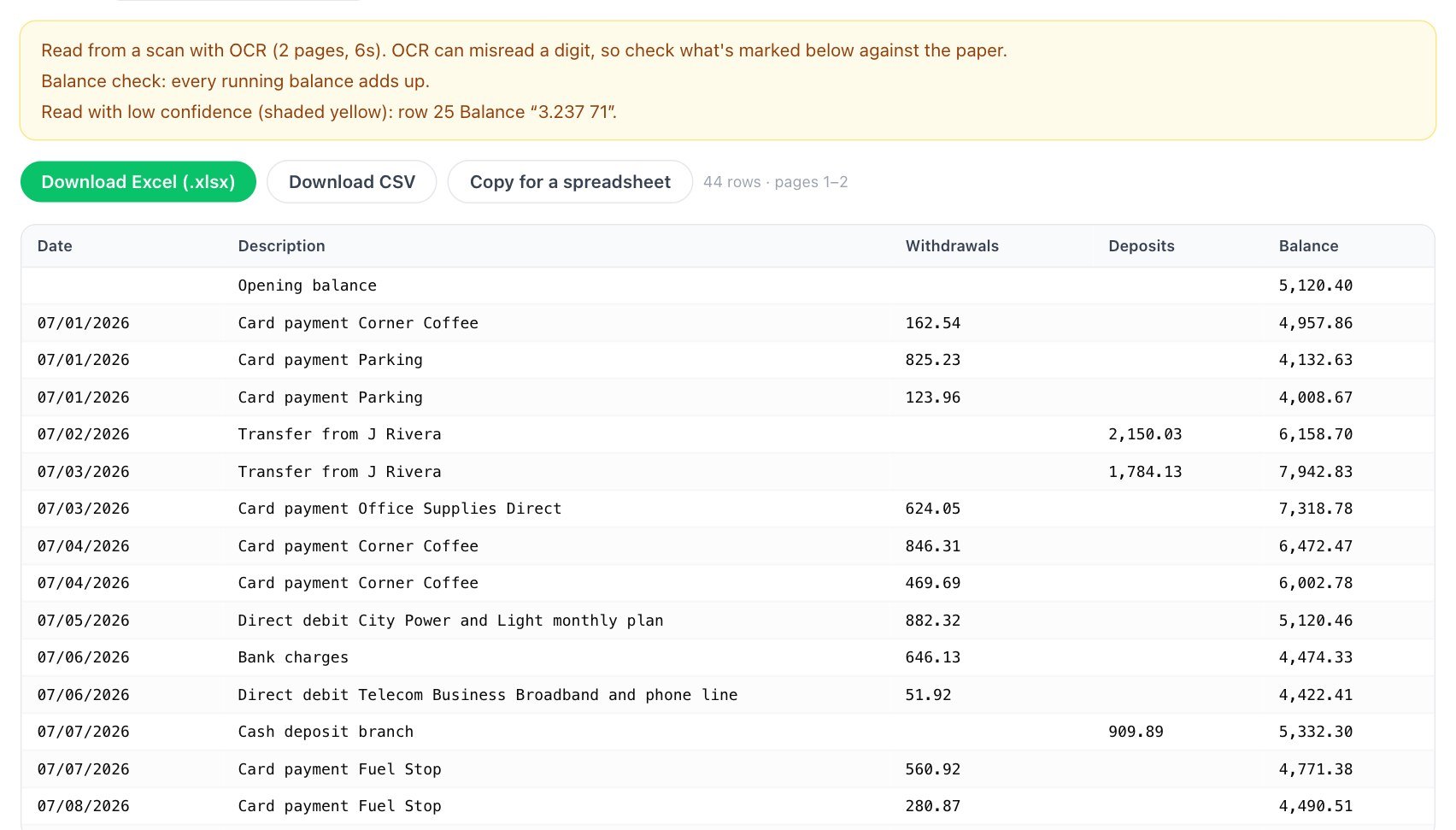
That's the page above, on a 300 dpi grey scan. It says every running balance adds up, and in the same note it lists a balance read as 3.237 71. Both are true: every balance it could read did add up. On this scan a second balance, 1,538.61, had come out as 1.538:61, with no mark at all. It's also how 319.24 got through as 315.24: the balances on that row and the one before it were both unreadable, so nothing tested it.
Out of the 40 scans where the check said everything added up, 7 had a wrong amount. In 5 of them the wrong cell wasn't a number at all, and the other 2 were 100 dpi photos where only part of the statement reached the table. So read "adds up" as "nothing I could test failed", and compare the row count and closing balance with the paper. Both take seconds.
What to do with your statement
Start by asking the bank for a download. A PDF made by the bank has real text in it and needs no OCR, and every figure in this article stops being your problem.
If it has to be paper, scan at 300 dpi. Grey is fine and black and white did better here, but never go below 300 in black and white. Keep the page flat and square, and set the resolution yourself rather than leaving it to the scanner app.
With a phone, fill the frame with the page, hold it square above the paper and keep the light even. Then look at the row count. If the table came back short or split into pieces, take the picture again before you check a single number, since no amount of checking brings back rows that aren't there.
Already holding a low-quality scan? Zoom in on the amounts. If the digits look like the top strip of the picture at the start of this article, no reader will save it. Re-scan it, or type it.
For the money itself: use the balance check, read every yellow cell against the paper, then compare the row count, the opening balance and the closing balance. On a card statement with no balance, add up the amounts and compare with the total it prints. It's the only test you have.
Speed is not a reason to go lower. At the settings we'd use, a page took 1 to 6 seconds with other jobs running on the machine. The poor photos were the slow ones, averaging 10 to 22 seconds a page.
Got a scanned statement? pdfTables reads it in your browser tab, the PDF is never uploaded, and it shows you which cells to check.
Open pdfTablesOnce your data is in a real table, Pilotbase is a database client for Windows, macOS and Linux, or Docker on a server: load it, query it and check the totals.
Get PilotbaseRelated: Your bank only gives you a PDF. Here's how to get the transactions into Excel · Your export is too big for Excel: three ways to open it
Sources, checked 5 November 2026: Tesseract documentation, Improving the quality of the output ("works best on images which have a DPI of at least 300 dpi"). Everything else is our own test on made-up statements, using tesseract.js 7.0.0 with the 4.0.0_best_int English model.